All Activity
- Past hour
-
Thanx Archie - Yeah I wish I had a ML - but I only got a 24/48. However all is not lost - some redirection and some moding subs and i think i will be ok. Thank you for your input and all your typing :¬) Cheers
- Today
-
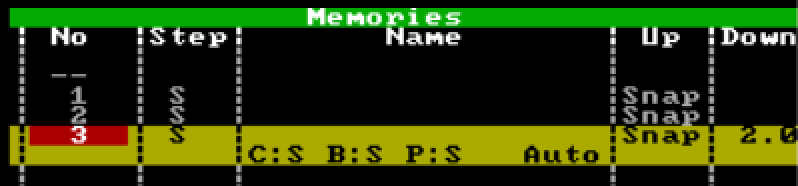
Hi @barefootcoder, I'm assuming you're working on a Jester 24/48, or a 12/24? Unfortunately, this isn't possible on those consoles due to the trigger functionality not being present. You'll simply have to press the GO button twice quickly. However, the answer is different if you are on a console that's on the ML side of things (Jester ML, ML24, ML48). If you are on a Jester ML console, you can do the following: 1. Go to the cue that you'd like to then program addition cues to snap down and fade down. 2. Bring the fixture you'd like to snap down to an intensity of 0. 3. Ensure 'Down' is 'Snap'. Then hit Program to store that cue, after selecting which memory to record to. 4. Now bring the other fixtures down to an intensity of 0. 5. Define a 'Down' fade time. 6. Use the 'Special' tab on the front panel to tap 'Trigger'. This will change it to 'Auto', which will be an instant follow-on from the previous cue. You can then hit program again. In Run mode, after hitting the GO button on the snap-down cue, the fade-all down cue will automatically follow. An example of this is what I've created below, where cue 1 is the state where all those fixtures are up, cue 2 is bringing a single fixture down in a snap, and cue 3 is an auto-follow of a fade of 2 seconds bringing everything else down: I hope this helps.
-
No problem Bob.
-
Thanx keith... something to chew on. Perhaps i will change the direction rather than the execution!.... 🗽🌩🎄🪪❗️❗️ i have the power!! Ha ha ha However I like the snap on subs idea. Thanx 😀
-
Had a quick peruse of the manual. Didn’t see anything about auto-go but I could have missed it. Other option which I’d probably use on my Alcora (Jester predecessor) would be to programme your snap lights onto a sub master and also into your fade cue. At the cue point press and hold the flash button for the sub master and press GO. After the fade up time of the fade cue, HTP will hold your snap lights on and you can release the flash button.
-
I doubt you could do this directly, you can’t on an FLX and that is a much more advanced console. I don’t know Jester so happy to be told I’m wrong. Can Jester do auto follow cues? I’d do the snap as the first cue then auto-go to a next cue that does the fade cue. That’s how I’d do it on Frog which is much closer to Jester in functionality. If no auto-go then a quick finger on GO is what you’re left with (On FLX we’d have other option like triggering other playbacks but I think the above would still be simplest to programme and maintain). Good luck! Kevin
-
Christmas is coming and as per usual I am starting to panic with all the extraneous performances. Here is what i want One Cue that will snap fade one light and slow fade all the others. Is it possible to do these multi-fades on one cue? Thanx and Cool Yule p
- Last week
-
 Franck changed their profile photo
 -
Wir freuen uns auf die ersten 2026 ZerOS Workshops für die Vari-Lite FLX S Lichtsteuerungen. 24. Februar 2026 bei Focon Showtechnic, 49504 Lotte/Wersen bei Osnabrück - Infos & Anmeldung 31. März 2026 bei cast C.ADOLPH & RST DISTRIBUTION GmbH, 58099 Hagen - Infos & Anmeldung
-
- 1
-

-
Hi @Alexandre, apologies for the late reply but I thought it was worth sharing this. Thank you for providing your show file. You're correct, the crash behaviour is related to Move on Dark being used in Playback 7. Upon further investigation of your show file, cue 3 in Playback 7 contains the 'Smooth' effect (E5 to be precise) applied to fixtures 2-9 and 49-54. After messing around with Move on Dark and only enabling specific attributes (position, effect, etc.), it appears that Move on Dark is looking forward in the cue stack (from cue 1 & 2) and is attempting to apply an intensity effect (Smooth) to fixtures that are at an intensity of 0 in that cue (essentially - those fixtures have no intensity values to modify by the effect / have had no intensity instructions as their intensities are not set in that cue and the previous ones - tracking is enabled). Note that 'Smooth' is an intensity based effect, which is likely the reason for the crash behaviour from what I can see. Instead of disabling Move on Dark generally for the whole playback, in ZerOS we have the option to disable certain parts of it, ensuring you don't lose out on any advantages of using Move on Dark e.g. with colour and position in sacrifice of effects to prevent crashing. To do this, you'll need to turn off the effect attribute for Move on Dark for the specific cue(s) that are causing you problems with Move on Dark so the console ignores any effects that may cause issues for that cue specifically. You could alternatively go the simple route - disabling effects in Move on Dark for the whole playback instead of just individual cues, but that will result in (for example) position based effects not being taken into account by Move on Dark, meaning effects such as 'Circle' won't be applied in dark - you will see them apply from 0 effect size to their defined effect size for that cue over the defined fade time as the fixture's intensity is brought up. You can, however, resolve this*. Disabling Move on Dark for effects only on specific cues: In the 'Settings' column in the cue stack, tap 'Add' on the cue you wish to disable effects with Move on Dark Tap 'Don't Move Effect' so it has a red indicator as opposed to a blue one (red is 'activated/selected', blue is not) Tap 'OK' Effects with Move on Dark has now been disabled for just that cue. When launching into this cue, effects will now be applied on the press of GO into that cue. You can do this for every cue that is causing a problem. Disabling Move on Dark for effects only on the entire playback: Hold the 'Setup' key on your console's front panel and tap your playback's flash button On the internal touchscreen (or monitor if using a FLX S48), tap 'Move on Dark' Tap 'Don't Move Effect' so it has a red indicator as opposed to a blue one *By enabling 'Don't Move Effect' for the whole playback in the playback's settings, inside each specific cue's settings referred in my first set of bulletpoints, that option will now have changed to 'Move Effect' (only for cues within that playback). This allows you to tell the console to look ahead in the cue stack and move the effect-based things for a specific cue anyway, ignoring the playback's general settings for Move on Dark that all effect movements are disabled. An example of this is shown in the image below in the far left column of options: I hope this helps, and I hope your FLX S continues to serve you well. Kind regards Archie

-
 Thanx for that - i would really like to try this sometime - I am going to try to convince the show designer that we should group some of the lights and share some channels. Cheers Kevin and kind regards.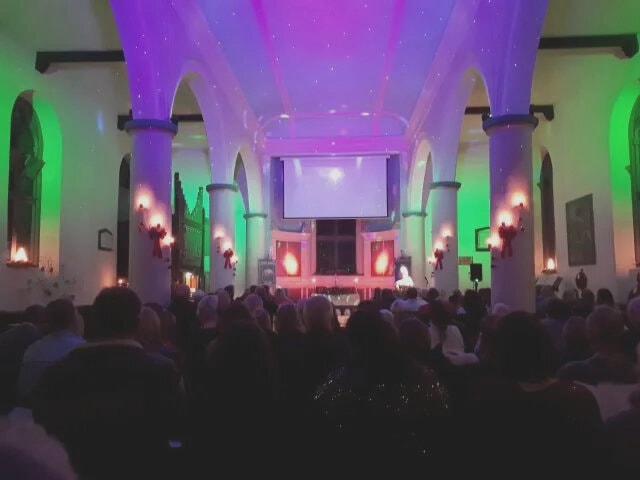
-
thanx - interesting reply. in the end i bought another 2nd hand one for approx £250 - thinking that a repair would cost £100+ anyway. So now i have a backup that just about works. Perhaps i should buy a bull frog too - i love those older desks (I dont have moving lights) Thanx matey
-

Zero88 Jester 48 needs service please in the United Kingdom please?
kgallen replied to barefootcoder's topic in Jester Range
Old post I know but your only hope now is one of the distributors: https://www.zero88.com/distributors/list/united-kingdom-and-ireland 5 are listed in the north west, but I don’t know which if any are still Zero88 dealers, or can offer repair services. Keith and Ian Knight are both gone (in different ways unfortunately). -
Can I connect two Jester 48's to each other and get 96 channel desk
kgallen replied to barefootcoder's topic in Jester Range
The manual page 51 says the DMX input port performs a merge into the DMX output. See also page 20 item 4. So if you patch to different addresses it seems like this should work after cabling the DMX output of one Jester into the DMX input of the other. So have a read of the manual, and more importantly, try it out. https://www.vari-lite.com/b-dam/vari-lite/discontinued-products/jester/english/jester-manual-3-4.pdf Note: All our friends from Zero88 are gone and no one from Vari-lite has any interest in their current consoles let alone legacy ones they had no involvement with. So unfortunately we’re ’flying solo’ now. So us users (or non-users in my case with Jester) is all there is now. If you find out that you can (or indeed if you can’t) chain Jesters like this to expand your controllable channel count, it would be good if you’d take the time to document your findings here, to help other users. Good luck with your show. -
Can I connect two Jester 48's to each other and get 96 channel desk. If so does anyone know how or can you point me to a link to research it please. I have a Christmas Concert coming up very very soon and I need a few more channels of poss. Thanx so much. Kind regards. P.J
- Earlier
-
Same happens to me, but not for hazer, but for houselights. I would very much like that "exclusive playback" feature.
-
 MHSNetSup joined the community
 -
 pmiller057 joined the community
 -
I have long been asking for Exclusive Playbacks for the very same reason. This is what Edward Smith sent me back in March 2023: Exclusive Playback" faders are currently assigned to ZerOS 8 on our roadmap. Please note that this could move if our priorities change. If a playback is configured as exclusive, this would prevent it from being recorded into cues, even if recording with SmartTag.
-
The ability to change views within the Output Window between 20 or 24 fixtures is possible with channel width located in 'Window Setup', but only for Solution / XL, Leapfrog 48/96, Orb, OrbXF and SCD Server Pro. This button is on the top bar of the Output Window, but unfortunately (as far as I can see), it is not available for FLX, FLX S or ZerOS Server. In response to your original question, you may be thinking of the 'Hide Unpatched' option within this popup window that will stop any unpatched fixtures being shown in the Output Window perhaps? See below:

-
I did check that out just to make sure but that just stops the desk scrolling beyond allocated blocks of channels or scenes on the page button, something I use anyway as it is useful.
-
Is it related to ‘Hide Fader Pages’ here? https://www.zero88.com/manuals/zeros/setup/settings/operational
-
I vaguely remember being able to adjust a setting so that the fixture level window could be set to show greyed out missing fixtures in order to keep the numbers in alignment with the faders. However I just made a new patch for a new venue and any skipped fixtures are just skipped, e.g. if there is no fixture 11 it displays 10 next to 12. If I load my regular (FLX) show into the FLX-S which doesn't have fixture 11 it is shown greyed out between 10 and 12. I've searched the online manual for likely words and gone through the menus but no luck. I remember an older prompt on earlier ZEROS for leapfrog to display 20 or 24 fixtures but that was a while back. Can anyone nudge me in the right direction or is it more of a hack? Cheers, Ian
-
I think my issue is mainly when updating a cue(s) during a rehearsal or during a run, I naturally have the haze machine running, so it inadvertently gets recorded into the cue. A good reminder about the 'Remove' feature for the odd cue or two, but I've generally found the delete fixture route catches all my errors if its been a big update session!
-
 Archie D changed their profile photo
 -
@kgallen @scottydog75 Well yes, but in a show situation, when you discover your hazer (or anything else) has been caught in cues, you can quickly set up an inhibit to get you through the performance.
-
I was going to suggest inhibit but I think that’s more a sticking plaster over the issue rather than a proper approach that David described above.
-
If you are operating with tracking options set to "Cue Only" or you have "Snapshot" enabled when you record then you have effectively told the desk to record everything. See manual here and here. In the Record Options, "SmartTag" enabled could record the hazer - if you changed one or more of its values in the programmer. For full control of what gets recorded you need SmartTag off. You can then select "Tagged Fixtures" which will record every fixture that has been changed or "Selected Fixtures" wich only records the currently selected Fixtures. See manual here. Cue Only, Snapshot & SmartTag all let the desk decide what to record, turning all of them off makes you decide but then you need to be sure you have included everything you want. Tagged Fixtures will generally get that right, with Selected Fixtures there is a risk that you will select a fixture, change it, de-select it, select another and change it then record - in this case only the 2nd fixture gets recorded. Essentially, the desk will do what you tell it but you need to understand what you've told it. There are videos in the linked manual references, these might help. To remove your hazer (or anything else) from a cue, select it, press Home then Update and select Remove. Hope that helps.
-
Is anyone aware if there is a way to always exclude a fixture from being recorded into a cue stack? I keep accidently recording my haze machine into my main PB, which can be resolved by deleting and re-patching the hazer, but feel like there must be a better way? Cheers