Archie D
-
Posts
121 -
Joined
-
Last visited
-
Days Won
13
Everything posted by Archie D
-
Hi Simon, It is extremely unfortunate that Ian passed away, he is definitely missed. Regarding the wheels - there is a tiny PCB on each wheel held by four plastic clips (two latch over the PCB and two stick up through holes on the PCB). If this PCB comes out of those clips and slides out slightly, the contacts don't meet the wheel and so the wheel's movements are not read correctly. If you don't get anywhere with White Light as kgallen has suggested, and are confident with opening your Solution up (the front panel along with the palm-rest hinges up from the base to an extent) then it may be worth checking those PCBs. If all PCBs are seated correctly and the wheels still do not respond correctly, it would be worth looking into spares. Hope this helps.
-
Hi Edward, Apologies for the delay, things have been rather busy this end. Thank you for your advice - when things have calmed down a bit I will have a look into the BIOS instructions, thank you for the link. I'll let you know the outcome. Many thanks again, Archie
-
Hi Edward, Thank you for your reply, I really appreciate it. That probably explains why I can't get into it. I was looking for the Startup Tool to future-proof the desk in case I need to do a fresh software install to recover it as the desk currently isn't picking up any bootable USB sticks (have tried multiple, including the MBR method), neither is it picking up the software CD supplied with the desk. Since it was introduced for FLX S, am I correct in thinking it will only accept .exe upgrade files instead of a whole bootable USB? Many thanks, Archie
-
No worries, great to hear.
-
I'd recommend using ZerOS 8.0.1 for your next show as I believe ZOS-12594 is the bug fix for the crashing issue in ZerOS 8.0.0. ZerOS 8.0.1 also fixes the issue when referencing a non-existent palette (ZOS-12752) using syntax (e.g. COLOUR 40 ENTER where Colour Palette 40 does not exist), previously this would crash the desk. This is actually quite useful if you accidentally hit the wrong key while trying to reference a palette (therefore entering the incorrect palette number, accidentally being one that doesn't exist), and then you have to restart the whole desk to gain control again.
-
Hello @alg, Move on Dark can be enabled via entering your playback's settings (hold SETUP + Tap Playback's button) -> Move on Dark -> Enabled. The 'General', 'Chase', 'Raise and Lower' etc. that you see along the top are tabs to access groupings of playback settings, they aren't buttons to adjust actual settings. By default, when opening a playback's settings window, 'General' will always be the first tab selected (hence you see General every time you open the window), as they are general playback settings which aren't necessarily specific to other tabs such as 'Raise and Lower' or 'Chase'. If you're perhaps thinking of playback defaults found in SETUP -> Defaults -> Playback Defaults, these settings will only be applied to newly created playbacks and will not change existing ones. (D:3.0) in a fade time cell of a cue indicates a delay, with the time before it (0.0 in your case) indicating the actual fade time. If a cue had "5.0 (D:2.0)" in the "Up" cell, when going into that cue the console would delay executing the fade for fading up lights in that cue for two seconds, then proceed with the five second fade. This can be useful in cases for example where you don't want a moving light to come up until it has actually snapped into its position to prevent seeing it swoosh across stage during an intensity fade up or for staggering fades. Hope this helps, if you have any other questions please don't hesitate to ask. Archie
-
Hi all - unfortunately, I fear that this post may not get very far as most Frog 2 users have completely moved on (to my knowledge), but here goes.. On my Frog 2, I wish to access the ZerOS Startup Tool. Usually, you'd keep tapping F1 while the console is booting. If I do this on my Solution XL, it works as expected. Frog 2, nope... After the console's blue BIOS splash screen on the external monitor saying "Loading, please wait..." disappears, I keep tapping/holding F1 but the console boots straight into the main ZerOS application. The tapping/holding down of F1 is mentioned both in the online manual, and in a comment by Simon (original software developer for Frog2OS - that's ZerOS now). One theory that I've been thinking about - usually when updating the console with a bootable USB drive (old method), a screen would appear with an 'Update Software' button, I think that is using the Startup Tool application on the console's CF card (separate from the main ZerOS application). Even when I plug in a bootable USB or use the original 7.8.2.39 software CD to try and bring that update window up, still nothing. My conclusion is that the startup tool application doesn't actually exist on the desk's CF card. At some time, I plan to open the console and extract the CF card, pop it into my CF reader and see if the Startup Tool application exists on it. If it doesn't, I think I would be able to extract it from the Solution CF card (from memory the Startup Tool is from 2007 across all desks, so I think it should work fine) and put it on the Frog 2 one. Before I do that, are they any ideas anybody may have as to why this is happening? Many thanks for any assistance with this. Archie
-
Hi Ian, That's great news, glad to hear you got it sorted. Have a good day, Archie
-
Hi @Ian_p, Please could you upload your showfile here? We may then be able to figure out if it's a problem with the fixture itself, or if the fixture has some funny channel on it in the profile causing this erratic flashing behaviour, thank you. The previous 'Edit Fixtures' window to see and change defaults of fixtures was removed in ZerOS 7.9.3 in favour of the new Fixture Schedule section of SETUP. To see a fixture's defaults, you could select the fixture(s) and page through the different attributes and see each individual parameter value on the internal touchscreen of FLX S.
-
Good afternoon @Richard Elv, You can purchase a Phantom ZerOS Unlock Dongle from one of the distributors, or from here on StageGear. For outputting DMX with Phantom ZerOS, the Unlock Dongle must be plugged into your computer. If it is unplugged, DMX output will stop until the dongle is present again. Regarding methods of actually getting DMX out of your computer from Phantom ZerOS, you have two options. The first, is to output over the network using protocols such as ArtNet or streamingACN. The second, using a USB to DMX device (ones which support the ENTTEC protocol). Personally, I recommend the ENTTEC DMX USB Pro, which is generally considered to be a very high quality device and can be configured straight from ZerOS in SETUP -> Devices. Each of these devices will output one full universe of DMX. When running Phantom ZerOS as a FLX, you have access to 16 full universes of DMX (8192 DMX channels) over 64 patchable universes. If you're already used to using FLX, using a Phantom ZerOS Unlock Dongle will be ideal as it will give you the front panel you are already familiar with - just virtually. This can be used with a touchscreen, along with the external monitor for multi-touch functionality. Yes, the ZerOS Wing can be used with Phantom ZerOS running on a PC via USB as if you were using it with a physical console, therefore you will be able to use it across both your FLX and Phantom setup. Using a ZerOS Wing is the best option to give you more faders at one time. I hope this helps, Archie Bonjour @Richard Elv, Vous pouvez acheter une clé de déverrouillage Phantom ZerOS auprès de l'un des distributeurs ou directement sur StageGear. Pour la sortie DMX avec Phantom ZerOS, la clé de déverrouillage doit être branchée à votre ordinateur. Si elle est débranchée, la sortie DMX s'interrompt jusqu'à ce qu'elle soit reconnectée. Pour récupérer le signal DMX depuis votre ordinateur avec Phantom ZerOS, deux options s'offrent à vous. La première consiste à utiliser le réseau via des protocoles tels qu'ArtNet ou streamingACN. La seconde, à utiliser un convertisseur USB vers DMX (compatible avec le protocole ENTTEC). Je recommande personnellement l'ENTTEC DMX USB Pro, généralement considéré comme un appareil de très haute qualité et configurable directement depuis ZerOS dans le menu CONFIGURATION -> Appareils. Chacun de ces appareils génère un univers DMX complet. Lorsque Phantom ZerOS est utilisé comme FLX, vous avez accès à 16 univers DMX complets (8192 canaux DMX) répartis sur 64 univers patchables. Si vous utilisez déjà FLX, l'utilisation d'une clé de déverrouillage Phantom ZerOS sera idéale car elle vous permettra de retrouver virtuellement le panneau avant que vous connaissez déjà. Vous pourrez l'utiliser avec un écran tactile, ainsi qu'avec un moniteur externe pour une utilisation multitouch. Oui, la ZerOS Wing est compatible avec Phantom ZerOS installé sur un PC via USB, comme si vous l'utilisiez avec une console physique. Vous pourrez donc l'utiliser à la fois avec votre configuration FLX et Phantom. L'utilisation d'une ZerOS Wing est la meilleure solution pour disposer de plus de faders simultanément. En espérant que cela vous soit utile, Archie
-
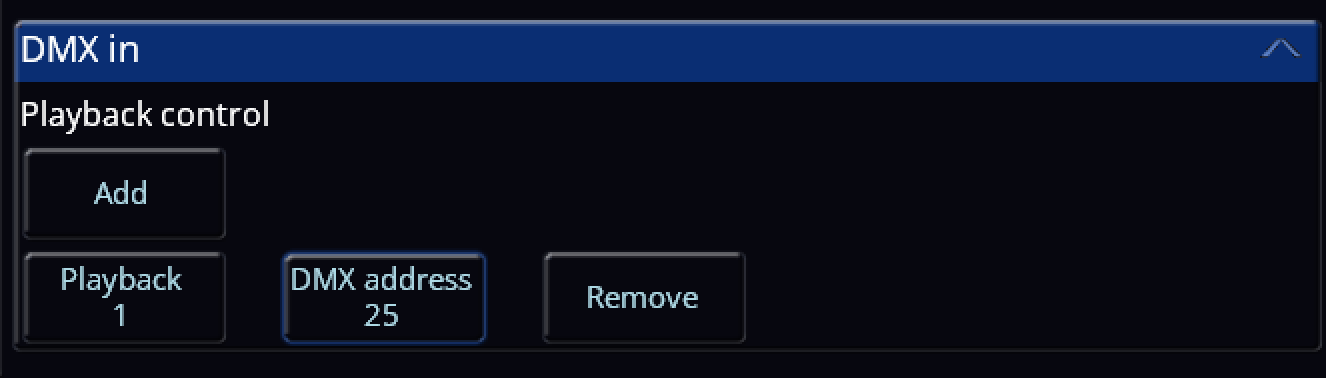
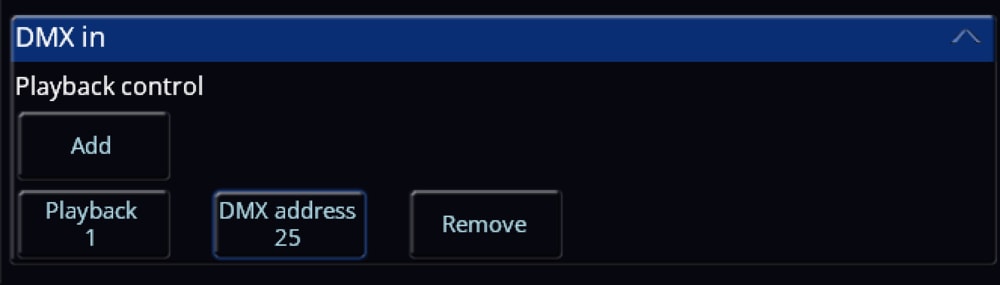
Hi @Richard Elv, Welcome to the Zero 88 Forum! Ultimately, it is highly recommended to use a ZerOS Wing to expand the available faders that can be used at one time on your console. However, using another console such as the FLX S24 is possible, but quite limited in comparison to a Wing. For instance, with this method, when you bring up a fader of a fixture on the FLX S24, it won't automatically be selected on your main FLX console, whereas on a Wing it interacts with the console and does select it automatically (depending on the 'Auto select channels' setting in SETUP -> Settings -> Operational -> Auto select channels). You also won't be able to do record, delete, SETUP + Tap playback button etc using the method described below, DMX Input. For using a FLX S24, you will need to configure one of your DMX output ports on the main FLX to be a DMX input instead. To do this, go to SETUP -> Universes, and tap 'DMX in' on the DMX output you wish to be a DMX input instead. On the FLX S24, you can patch in a bunch of dimmer channels (I recommend patching in the maximum available on ZerOS 8.0, which is 96). Then, connect the first DMX output port on the FLX S24 to your defined DMX input on the main FLX. You will need an adapter for the correct XLR connector to link the consoles together as they are both female XLR outputs. After this has been done, you now have a 'DMX In' column in your Fixture Schedule within SETUP. This lets you define a DMX In address for each individual fixture patched in, so when the console receives DMX data from the defined DMX input port (e.g. I raise channel 1 on the FLX S24 which has DMX address 1 -> FLX receives that data -> Fixture 200 in the FLX has a DMX input address of 1 -> Fixture 200's intensity raises), it will respond as configured. For playbacks, you can set a playback's DMX input address via SETUP -> Triggers -> DMX In. From there, you can tap 'Add' to add a playback to configure ready for DMX Input. In the example below (image attached), I have set Playback 1 on a FLX to be raised and lowered with DMX input address 25 coming from a FLX S24. I have done this so my first page of dimmer channels on the FLX S24 control fixtures, whereas the second page controls playbacks. (1-24 fixture control, 25-48 playback control). If you wish to use the Channels/Playbacks switcher button on the FLX S24, you could set up 96 dimmer channels (4 pages of dimming), use the first 72 (3 pages of dimming) as fixture control, but individually record each of the remaining 24 dimming channels at full as a playback each (playback 1-24), and on the main FLX you set the DMX Input address for each of your playbacks to the last page of dimming on the FLX S24. If you require control of more than 24 playbacks, you could go back further than the last page of dimming and use some of the third page too of the FLX S24. Overall, the ZerOS Wing has been designed to interact with the FLX or any other ZerOS console, and was produced for the reason of adding extra faders that can be used at one time. Using DMX Input is rather limited, so my recommendation is to use a Wing. But, I hope this helps, and if you have any further questions please don't hesitate to ask. Apologies for not translating, I figured if I did then this message would be colossal. Archie
-
I've done some digging, and it appears in the Chauvet P5 manual that they mention "The LEDs will automatically shut off after 60 seconds of sustained output. Reset the dimmer to re-enable LED output", indicating you'll need to take the dimmer channel of the fixture (CH15) to zero and back up again in order to re-activate the LEDs. I understand that you're using a Chauvet P7, but I'm thinking that this behaviour might cross over to the P7 too and just wasn't mentioned in the manual perhaps? Hope this helps advance this further. Archie
-
Hi @DSUK73, Welcome to the Zero 88 Forum. Using a Phantom ZerOS Unlock Dongle unlocks the maximum amount of channels available for the fully upgraded console you are emulating (e.g. emulating a FLX will give you 8192 channels = 16 universes, emulating a Solution will give you 2048 channels = 4 universes). Any USB to DMX device that supports the ENTTEC protocol should work with Phantom ZerOS, I personally use the ENTTEC DMX USB Pro and have two of them. Each ENTTEC DMX USB Pro device will output a single universe of DMX. You can, of course, output DMX over Ethernet via your computer's network port for less cabling out of your PC if you have an Ethernet gateway. Once the USB to DMX device is plugged in, it can be configured in SETUP > Devices. This allows you to set the universe being output on that device, output rate, etc. Purchasing an Unlock Dongle is a great investment and I highly recommend it. I hope this helps, let me know if you have any questions. Archie
-
Ah - after re-reading my post I realised I mis-interpreted part of your post! I apologise. But yes, that would definitely work loading the FLX S show file into Phantom ZerOS and editing it while emulating a FLX console to create a user macro. The only thing you'd run into is once loading the show file into the FLX S, re-saving it and then needing to create another chase later down the line, you'd need to re-construct the user macro again on Phantom as it originally won't have been loaded in to the FLX S. If the chase is in the same arrangement as before, I suppose you could copy the chase and just track through a colour change of the fixtures in each step.
-
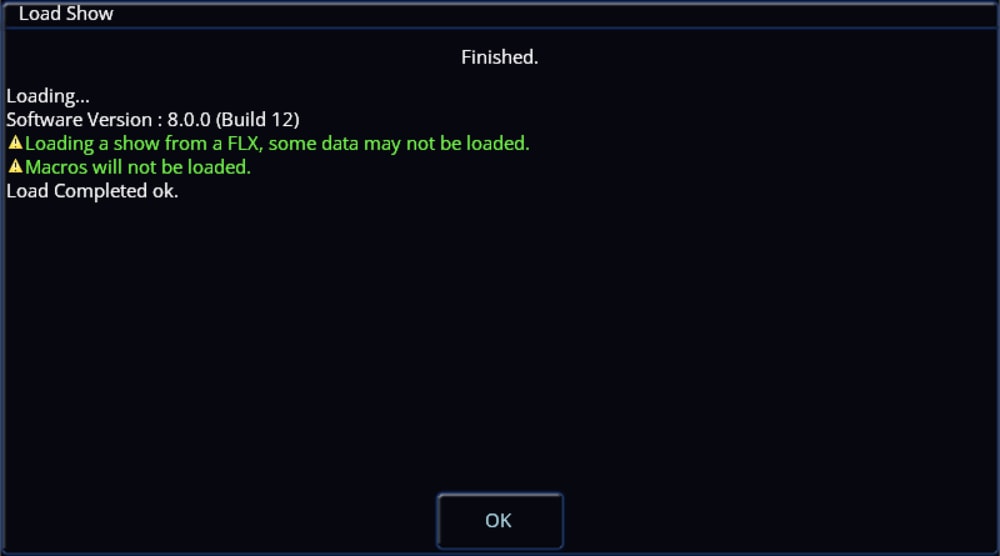
Just for clarification, when loading a show file containing User Macros into a FLX S console, they will be disregarded and not transferred over. Hope this helps. Archie
-
Just putting what I posted on the Zero 88 Users Group here in case anybody needs a solution to the same problem.
-
Hi Peter, I've just replied to your post on the Zero 88 Users Facebook Group. Give it a go and let me know how you get on. Archie
-
Fantastic to hear it is working. Please feel free to ask any more questions if you have any. Archie
-
Hi @CestM0i64, In ZerOS, Playback 0 is the master playback, so using OSC (e.g. /zeros/cue/go/0/20) will go to cue 20 in the Master Playback. Therefore, Playback 1 will be go/1/<cue number>, and so on. Hope this helps, feel free to ask any more questions you may have. Archie
-
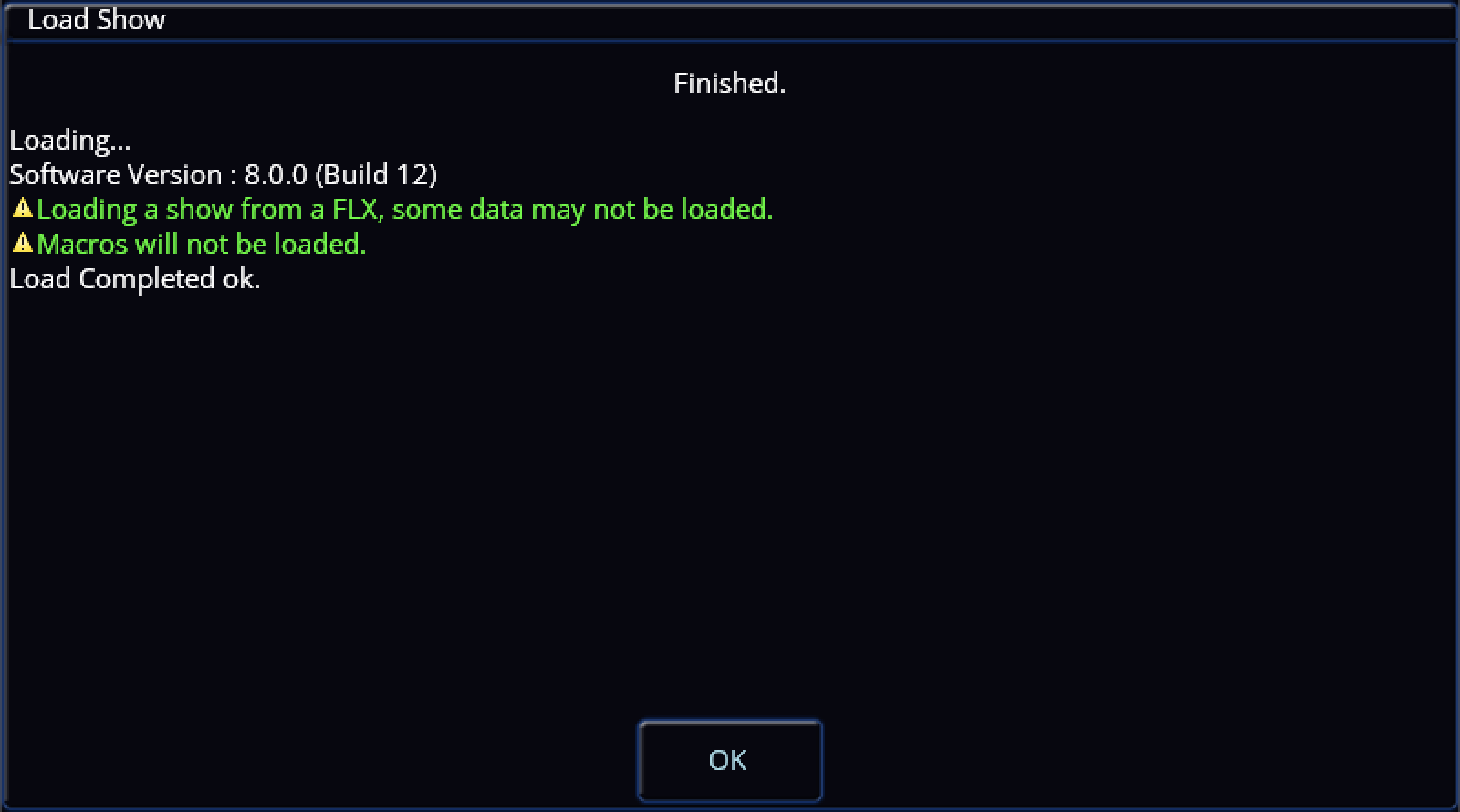
Ever since acquiring my Frog 2, I noticed that with the Dockhouse (Capture) Demo Presentation show file for ZerOS (available from Zero 88 here), it is of course a .zos file. The change from .isf to .zos for show files was made in ZerOS 7.9.8, a version of which is after 7.8.2.39 (the last supported software version for Frog 2) meaning Frog 2 only loads show files saved with the .isf extension. This means my fellow Frog 2 users won't be able to use the Capture Demo File for learning or having a play/experiment, so I have "converted" the .zos show file to .isf in order to be compatible with Frog 2. I imagine the audience for this won't be too large anymore since I feel Frog 2 popularity has died down significantly, but I'm posting this as a public resource in case it is of use to anybody who still uses a Frog 2 or a console on a version of ZerOS before 7.9.8. When loading in the show file, you'll be told it was from a Frog 2 and that some data won't be loaded. There shouldn't be any reason that some data won't be loaded with the way I've done this, but if you are loading this file onto a Frog 2, UDF 1 (User Defined Fader) will have a stored state on it. If loading this onto a different console type without UDFs (e.g. Solution), this should be transferred onto playback/submaster 1 (theoretically). It is also worth noting that this .isf show file is only within the limitations of Frog 2 - meaning the other higher universes found on the .zos version won't be seen or usable (Universe 5 & 6). The attached show file loads with the newer ZerOS skin if on Frog 2 - other consoles have that skin by default regardless, to provide a familiar user interface appearance to the other consoles people may have used with capture in comparison to the light grey and green classic theme on Frog 2. I have tested the .isf file with the Zero 88 provided Dockhouse 2022 file designed for the .zos version and it does work correctly. Anyway.. here's the show file, hope it is of use. Z88 Capture Dockhouse v7-8-2-39.isf
-
- 2
-

-
Save solution files for use on Leapfrog48?
Archie D replied to Muller Light's topic in Solution & Solution XL
Thank you for this information, it definitely sounds like ZerOS Watchdog kicked in while loading the show file. It would have displayed a list of registers and then also a stack trace. Archie -
Save solution files for use on Leapfrog48?
Archie D replied to Muller Light's topic in Solution & Solution XL
Hi Paul, Saving the setup within the show file as well theoretically shouldn't cause any problems. If you can recall - when the console crashed, was it a black screen with a load of white text (ZerOS Watchdog kicking in) or did the console just completely freeze, preserving monitor output too? Let me know how you get on later with LF48TEST1.zos, it has a few things disabled/removed to see if anything in the show file itself is crashing the LF48. One of my theories for this was that because the Leapfrog 48/96 came with 2 DMX universes as standard, with an optional upgrade card while the Solution comes with 4 universes straight from the factory, that ZerOS was trying to index a universe from the Solution (3 & 4) that didn't exist on the Leapfrog when loading in the show file (if the optional upgrade card for 2 more outputs isn't present). Hence, U3 and U4 are disabled in that show file. However, it is just a theory and could be wrong. It's all about experimentation to see what works! I look forward to hearing from you, thank you. Archie -
Save solution files for use on Leapfrog48?
Archie D replied to Muller Light's topic in Solution & Solution XL
Hi Paul, Thank you for providing your show file. Please could you see if this file loads into your Leapfrog 48? If it doesn't and the console crashes, what does the console show on the external monitor? Please don't panic that your cues/playbacks are missing by the way for this file - I'm simply juggling things to see what does what. Thank you. LF48TEST1.zos -
Save solution files for use on Leapfrog48?
Archie D replied to Muller Light's topic in Solution & Solution XL
Hi Paul, Sounds good, if you’re still experiencing difficulties tomorrow, please could you upload your showfile here if that’s okay? I can then see if I can potentially find anything on PhantomZerOS and my Solution XL (though if it loads fine onto a Solution and not the Leapfrog 48, I might be lost) When the Leapfrog 48 crashed, was it a ZerOS Watchdog message that appeared? I’m curious as to what it said, or what the crash behaviour was like.. Thank you and have a good rest of your day. Archie -
Save solution files for use on Leapfrog48?
Archie D replied to Muller Light's topic in Solution & Solution XL
Hi @Muller Light, ZerOS showfiles are cross-compatible between ZerOS-based consoles, only with some data not being loaded (for example when you load a FLX showfile into a Solution, some data from the FLX won’t be loaded in). However, this won’t happen because Leapfrog 48 and Solution are identical, you’ll only receive a warning due to the different console types, but all data will be passed over. What software version are both of your consoles running? To see this, in the Output Window click ‘Other Windows’ (top left) -> System Information -> Software Version. What format is your showfile? Is it a .isf, or .zos? Many thanks, Archie